* All product/brand names, logos, and trademarks are property of their respective owners.
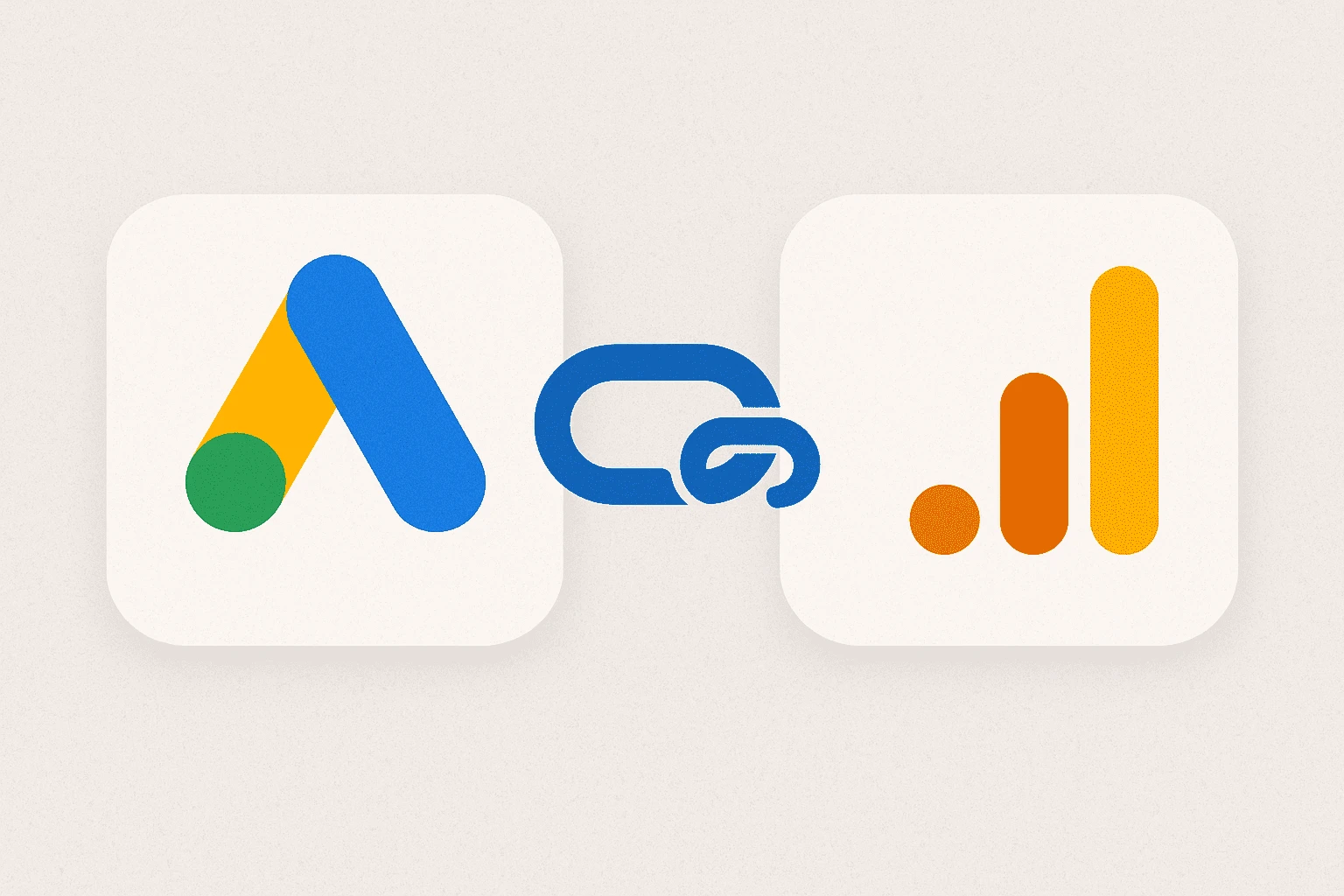
In today’s digital marketing world, running ads is easy but tracking their true impact is the real challenge. Many businesses spend thousands on Google Ads campaigns without fully understanding which clicks actually turn into customers. That’s where Google Analytics 4 (GA4) comes in. When you connect Google Ads and GA4, you unlock a powerful partnership that helps you go beyond surface-level metrics like clicks and impressions. Instead, you get deeper campaign insights: which ads drive real conversions, how audiences behave after clicking, and where your budget is truly delivering results.
For years, marketers relied on Universal Analytics (UA) to measure ad performance, but with the shift to GA4, things have changed. GA4 offers a more advanced, event-based tracking model that provides flexible, detailed insights across platforms and devices. Linking GA4 with Google Ads ensures that every conversion whether it’s a purchase, a lead form submission, or even a WhatsApp chat is properly captured and attributed.
Why does this matter? Without this integration, you may end up making blind decisions: increasing bids on ads that look good on the surface but don’t actually bring in sales, or missing out on campaigns that quietly drive high-value customers. By syncing Google Ads with GA4, you can see the full customer journey from the first ad click to the final conversion and use that data to optimize campaigns more effectively.
Whether you’re a digital marketer in Pakistan running e-commerce ads, or a global brand looking for precise ROI tracking, this integration is a game-changer. In this guide, we’ll walk step by step through how to connect Google Ads to GA4, troubleshoot common issues, and use the combined power of these platforms to get actionable insights that boost your ad performance.
For example, a Pakistani startup selling handmade crafts might run Google Ads targeting international buyers. Without GA4 integration, they’d only see clicks but with GA4, they can track which countries actually generate sales. On the global side, large e-commerce players like Amazon and Daraz use GA4 to monitor customer journeys across apps, websites, and remarketing campaigns, ensuring every dollar spent on ads produces measurable value.
Connecting Google Ads with GA4 may sound technical at first, but the process is straightforward once you know where to look. Think of it as linking two puzzle pieces: one collects rich advertising data (Google Ads), while the other organizes and analyzes it (GA4). Together, they give you the full picture of campaign performance.
Local Case Study: A Lahore-based clothing brand linked GA4 with Google Ads and discovered that most conversions came from YouTube ads rather than search campaigns. By reallocating budget, they doubled sales within a month.
Global Example: A U.S. SaaS company linked GA4 to its Google Ads and used the imported data to identify that free trial signups were more likely to convert from search campaigns than display ads. This insight helped them cut wasted ad spend by 30%
The first step starts inside your GA4 property.
Log in to Google Analytics 4.
In the bottom-left corner, click the Admin (gear icon).
Under the Property column, look for Google Ads Links.
This is the place where you manage connections between GA4 and different Google Ads accounts. If you manage multiple websites or ad accounts, make sure you’re in the right property to avoid confusion.
Pro Tip: If you run campaigns for multiple clients or businesses in Pakistan, double-check the property name before linking. It saves a lot of headaches later.
Now comes the actual connection.
Click Google Ads Links → Link.
Select the Google Ads account you want to connect.
If you don’t see your account, make sure you’re logged in with an email that has admin access to both GA4 and Google Ads.
Click Next, then choose the settings you want (like enabling personalized ads, importing audiences, and sharing conversions).
Click Submit to complete the link.
At this point, GA4 and Google Ads are officially connected.
After linking, it’s crucial to verify the setup.
Go to Google Ads → Tools & Settings → Linked Accounts.
You should now see your GA4 property listed.
Inside GA4, check Reports → Acquisition → Traffic acquisition.
Here, you’ll start seeing campaign data coming in from Google Ads.
If you want to track conversions (such as purchases, sign-ups, or leads), you’ll need to import GA4 conversions into Google Ads. This ensures your bidding strategies (like Maximize Conversions or Target ROAS) are working with accurate data.
Pro Tip: Always allow 24–48 hours for data to sync after linking. Don’t panic if you don’t see results immediately GA4 sometimes needs time to populate reports.
Now that your Google Ads and GA4 accounts are connected, the real value begins. Linking them is just the starting point the real power lies in using the data to make smarter decisions. With this integration, you gain a 360° view of your ad campaigns: who clicked, how they engaged on your site, and whether they completed the actions that matter most to your business.
In Pakistan, many businesses run seasonal campaigns during Eid or Independence Day sales. With GA4, you can track not only the spike in clicks but also see which holiday ads led to actual purchases, helping you plan smarter for the next season.
Globally, brands like Nike use GA4 audiences to build hyper-personalized campaigns. For instance, showing “running shoe” ads to users who recently browsed running gear. Small businesses in Pakistan can apply the same principle: a food delivery service in Karachi can retarget users who added food to cart but didn’t complete checkout.
One of the biggest benefits of integration is seeing which campaigns drive conversions. Unlike the old Universal Analytics model, GA4 tracks events rather than just sessions, which means you can set up custom events such as:
A completed purchase
A form submission
A button click (like “Call Now” or “WhatsApp Chat”)
When these conversions are synced with Google Ads, you’ll know exactly which ads and keywords are generating actual business results not just traffic.
For example, if you’re running an e-commerce campaign in Pakistan, GA4 can show that 70% of purchases came from mobile users who clicked on a specific ad group. That kind of insight helps you adjust ad spend to maximize ROI.
Another powerful feature is creating audiences in GA4 and using them in Google Ads. Audiences let you segment users based on behavior. For instance:
People who viewed a product but didn’t buy
Visitors who added items to cart but abandoned checkout
Returning users who purchased in the past 30 days
Once these audiences are synced, you can run remarketing campaigns in Google Ads that specifically target these groups. Instead of generic ads, you can show tailored offers like discounts for cart abandoners or loyalty perks for repeat buyers.
Pro Tip: GA4 lets you build audiences based on predictive metrics too, such as “likely 7-day purchasers.” This predictive power gives you a head start in identifying hot leads.
The final step is making your campaigns smarter with data. By combining Google Ads clicks with GA4 conversion tracking, you can calculate:
Cost per acquisition (CPA)
Return on ad spend (ROAS)
Lifetime value (LTV) of customers acquired from ads
For businesses in Pakistan where digital marketing budgets are often tight, this level of insight ensures money isn’t wasted on underperforming campaigns. Instead, you can double down on ads that deliver high-value conversions.
For example, a local fashion brand might discover through GA4 that Instagram ads drive more first-time purchases, while Google Search ads bring in long-term repeat buyers. This allows the brand to balance budgets across platforms for maximum growth.
Even though connecting Google Ads to GA4 is a straightforward process, many marketers run into problems after the setup. Data may not show up, conversions may not track correctly, or accounts might fail to sync. Here are some common issues and how to fix them.
In developing markets like Pakistan, internet connectivity issues or multiple device usage can cause data discrepancies. GA4’s cross-platform tracking ensures that if a customer clicks an ad on mobile but converts later on desktop, you still see the full journey.
One of the most frequent complaints is: “I linked my accounts, but I don’t see any Google Ads data in GA4.”
This usually happens due to:
Using the wrong GA4 property or Google Ads account
Forgetting to enable auto-tagging in Google Ads
Not granting proper admin permissions
Solution:
Double-check that you linked the correct property and account.
Go to Google Ads → Settings → Account Settings → Auto-tagging and make sure it’s turned ON. Without auto-tagging, GA4 won’t know which clicks come from your ads.
Ensure you have admin-level access on both platforms.
Sometimes conversions don’t import correctly into Google Ads. You might see clicks but no conversions, or the numbers in GA4 don’t match Google Ads.
Possible reasons include:
Conversions not properly set up in GA4
Incorrect event configuration (for example, tracking a button click but not marking it as a conversion)
Time zone mismatches between GA4 and Google Ads
Solution:
In GA4, go to Admin → Events, then mark the desired events as Conversions.
Make sure your conversion actions are defined consistently across GA4 and Google Ads.
Align your account time zones to avoid reporting delays.
Even if everything looks connected, you may still see gaps in reports. To ensure smooth tracking:
Always keep auto-tagging enabled in Google Ads.
Avoid mixing manual UTM tagging with auto-tagging unless you know exactly what you’re doing.
Regularly audit your GA4 events to ensure they’re firing correctly.
Give data at least 24–48 hours to sync before troubleshooting.
Pro Tip: For businesses in Pakistan where customers often move between WhatsApp, websites, and apps, set up cross-platform tracking in GA4. This prevents missed conversions when users switch devices.
Connecting Google Ads and GA4 is no longer an option it’s a necessity for marketers and businesses who want to truly understand their advertising performance. Running ads without linking these platforms is like driving blindfolded: you might move forward, but you’ll have no idea where you’re going or whether you’re on the right track.
By following the steps we covered, you can easily link your accounts and start tracking campaign performance with accuracy. More importantly, once integrated, GA4 doesn’t just show you numbers it shows you insights. You’ll know which keywords actually generate conversions, which audiences are most valuable, and how your budget impacts real business growth.
We also discussed how to maximize insights by:
Tracking meaningful conversions beyond clicks
Building and importing GA4 audiences for smarter remarketing
Using ROI and cost-per-conversion data to optimize ad spend
And if you run into hiccups, the troubleshooting tips ensure your setup stays smooth and error-free.
For businesses in Pakistan and around the world, this integration is a game-changer. Imagine knowing that your ad spend of Rs. 50,000 not only brought 1,000 clicks but also resulted in 200 qualified leads or 50 loyal customers. That’s the kind of clarity GA4 + Google Ads provides.
Whether you’re a solo entrepreneur in Islamabad or part of a global corporation, the principle remains the same: data-driven marketing wins. Businesses that integrate GA4 with Google Ads consistently make smarter choices, reduce wasted spend, and build campaigns that convert more customers.
Now it’s your turn: connect your accounts, explore the data, and start making data-driven decisions that move the needle for your business. Don’t let guesswork drain your budget let GA4 guide your advertising strategy.
Ready to get deeper insights? Take a few minutes today to link Google Ads with GA4 and unlock the full potential of your campaigns.

No bio available yet.
The MacBook Pro has built a reputation that few laptops can match. For some, it’s the ultimate
17 April 2026
AI chatbots have quickly become part of everyday work, from writing content and answering questions
16 April 2026
Digital transformation has become one of the most talked-about priorities for modern businesses. Org
9 February 2026
Be the first to share your thoughts
No comments yet. Be the first to comment!
Share your thoughts and join the discussion below.